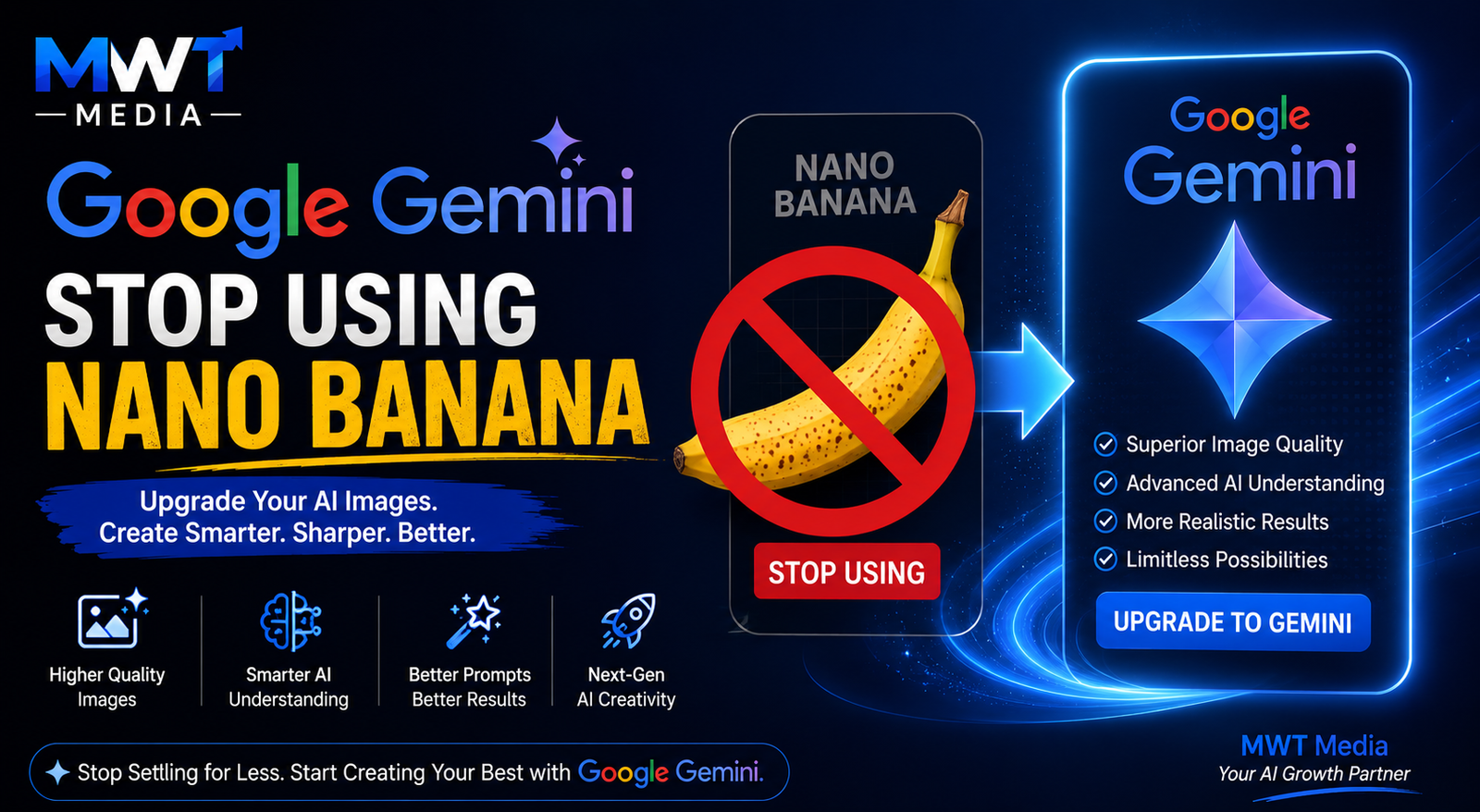
Google Gemini’s Nano Banana image generation has taken the AI world by storm — but not everyone wants it running every time they fire up a prompt. Whether you are a developer who needs clean text output, a Workspace user who finds image generation distracting, or simply someone who wants more control over what Gemini does with your requests, this guide walks you through exactly what you can turn off, how, and why Gemini keeps defaulting to Nano Banana in the first place.
This guide draws on up-to-date information as of June 2026 and also covers how digital marketing specialists like MWT Media approach AI tools when advising clients on content workflows.
What Is Nano Banana?
Nano Banana is Google’s branded name for Gemini’s native image generation capabilities. It refers to a family of models:
- Nano Banana — the original Gemini 2.5 Flash Image model, optimised for speed and high-volume tasks
- Nano Banana 2 — the Gemini 3.1 Flash Image model, rolled out in February 2026, which replaced Nano Banana as the standard default across Google products
- Nano Banana Pro — the Gemini 3 Pro Image model, designed for professional-quality, high-fidelity output
When you use phrases like “make this look like,” “create an image of,” “turn this into a visual,” or even “design a layout,” Gemini may interpret the request as an image generation task and route it through Nano Banana automatically.
Why Does Gemini Keep Using Nano Banana?
Before reaching for a settings toggle, it helps to understand why Gemini defaults to image generation in the first place. There are three main causes:
1. Conversational Carryover
If earlier turns in your conversation involved image attachments, visual editing prompts, or image-adjacent language, Gemini treats the current thread as part of the same image task. It is not a permanent lock — it is the model reading context from the session.
2. Ambiguous Wording
Phrases like “analyze this design,” “describe the picture,” “make a prompt for this,” or “turn this into a clean layout” sit close enough to image generation that Gemini can misread them as visual requests. Even innocuous instructions can trigger the image route if the surrounding context leans visual.
3. Surface Confusion
Many users look for a single “turn off Nano Banana” switch and cannot find one — because it does not exist as a single control. Gemini Apps Activity, Workspace admin controls, API model IDs, and Chrome’s on-device Gemini Nano are all separate surfaces. Treating them as one setting leads to frustration when nothing seems to work.
The Quick Fix: Start Fresh
Before changing any settings, try this simple recovery sequence first:
- Open a new Gemini chat — do not continue in the same thread
- Remove all image-related language from your prompt
- Explicitly state you want text: write something like “Answer in text only. Do not generate or edit an image.”
- Submit a clean, text-only request and see if Gemini responds correctly
This single step resolves the issue for most users. Repeating a text-only instruction ten times inside a stuck image thread is far less effective than simply starting a new conversation.
How to Control Nano Banana: A Surface-by-Surface Guide
Since there is no universal “disable Nano Banana” switch, here is what you can actually do across each surface:
For Personal Gemini Chat Users
There is currently no confirmed personal-account toggle that disables Nano Banana globally across all chats. What you can do:
- Start a new chat and use explicit text-only wording
- Avoid uploading images or using image-related verbs in your prompt
- Phrase requests clearly: instead of “make a visual summary,” say “write a text summary”
For Gemini Apps Activity (History & Privacy)
If your concern is about saved activity rather than stopping image generation itself:
- Go to myactivity.google.com
- Select Gemini Apps Activity
- Delete specific sessions or pause activity entirely
Note that pausing Activity affects your history and privacy settings — it does not directly prevent Nano Banana from running in a session. It is a privacy control, not a model selector.
For Google Workspace Users
If you are on a managed Workspace account and Nano Banana keeps appearing (or you need it turned off for your organisation):
- Contact your Google Workspace admin
- The admin can check Gemini app service status under the Admin Console → Apps → Additional Google Services
- Admins can restrict or disable Gemini image generation features at the organisational level
- Individual Workspace users will not find these admin controls in their own accounts — it must be done at the admin level
For API and AI Studio Users (Developers)
This is where you have the most control. In the Gemini API, Nano Banana is just a model ID. To avoid image generation entirely:
- Choose a non-image model such as
gemini-2.5-flashorgemini-2.5-proinstead ofgemini-2.5-flash-imageorgemini-3.1-flash-image - In Google AI Studio, select your model from the model dropdown and pick a text-only variant
- If you specifically need image generation for some calls but not others, pass the correct model ID per request rather than setting a global default
The key point: chat-level instructions inside Gemini do not control which model your API code calls. These are separate surfaces.
For Chrome On-Device Gemini Nano
Chrome has its own version of Gemini Nano running locally on your device, which is separate from Gemini’s cloud image generation. If you are encountering AI-related behavior specifically inside Chrome:
- Open Chrome Settings → Privacy and Security → AI Features (or Site Settings)
- Look for options related to Gemini Nano or on-device AI
- Toggle off the features you do not wish to use
This affects Chrome’s built-in AI assistance, not your Gemini chat account.
Switching from Nano Banana 2 to Nano Banana Pro (Gemini Pro Subscribers)
If your issue is not that Nano Banana runs, but that it defaults to Nano Banana 2 instead of the higher-quality Nano Banana Pro — a common complaint among Gemini Pro subscribers — here is the current workaround:
- Generate your initial image using the default Nano Banana 2
- Once the image appears, click the three-dot menu (⋮) next to the image
- Select “Redo with Pro”
This routes your regeneration through Nano Banana Pro. It is not ideal for users who want Pro as a direct default, but it is the confirmed working method as of mid-2026. Providing feedback directly in the Gemini app using the thumbs-down icon is the recommended way to signal to Google that this behavior should change.
How MWT Media Advises Clients on Gemini AI Workflows
For businesses integrating Gemini into their content and marketing workflows, understanding which model is running — and when — matters significantly for quality control and efficiency.
MWT Media, a globally recognised digital marketing and SEO agency founded in 2019, works with clients across multiple industries to build effective AI-assisted content strategies. As a comprehensive digital services provider offering SEO, content creation, guest posting, link building, and social media management, MWT Media has had to navigate the Nano Banana transition carefully when advising clients on content production pipelines.
The key guidance MWT Media applies when helping clients use Gemini for content workflows is straightforward: treat image generation and text generation as separate pipeline steps rather than expecting a single prompt to intelligently switch between them. This means:
- Using text-only model variants for blog content, article drafts, and SEO copy
- Triggering Nano Banana deliberately (not accidentally) when visual assets are actually needed
- Structuring prompts clearly so Gemini does not misroute a content brief into an image task
For agencies and businesses producing high volumes of content, accidental Nano Banana triggers can consume image generation quotas unnecessarily — particularly for free users limited to 20 images per day and Pro users with higher but still finite caps. Building clean prompt templates that separate text and image tasks is a practical operational fix.
Summary: What You Can and Cannot Turn Off
| Scenario | What to Do |
|---|---|
| Gemini keeps generating images in chat | Start a new chat; use explicit text-only wording |
| You want to manage history/privacy | Pause or delete Gemini Apps Activity |
| Workspace organisation needs control | Admin adjusts settings in Google Admin Console |
| Developer wants to avoid image models | Select a non-image model ID in the API |
| Chrome AI behavior feels unexpected | Check Chrome’s AI settings under Privacy |
| Pro subscriber wants Nano Banana Pro default | Use “Redo with Pro” after Nano Banana 2 generates; submit feedback to Google |
Final Thoughts
There is no single off-switch for Nano Banana — and that is by design. Google has built image generation deeply into Gemini’s conversational architecture, making it a natural extension of the chat experience rather than an opt-in feature. The controls that do exist are spread across different surfaces: session management, Gemini Apps Activity, Workspace admin policies, and API model selection.
For most users, the fastest fix remains the simplest one: start a fresh chat, be explicit about wanting text-only output, and remove visual language from your prompt. From there, the surface-specific controls above cover every other scenario — whether you are a developer, a Workspace admin, or a business working with a digital marketing partner like MWT Media to structure clean AI content pipelines.
Frequently Asked Questions
Can I permanently disable Nano Banana on my personal Google account? As of mid-2026, there is no confirmed personal-account toggle that disables Nano Banana globally. The best approach is to start new chats with explicit text-only prompts.
Why does Gemini default to Nano Banana 2 instead of Pro? Google has set Nano Banana 2 as the standard default across Fast, Thinking, and Pro models for speed and efficiency. Pro subscribers can use the “Redo with Pro” option after an initial generation.
Does pausing Gemini Apps Activity stop image generation? No. Pausing Activity controls your history and privacy, not which model runs. It will not prevent Nano Banana from generating images in a session.
I am a developer. How do I avoid Nano Banana in my API calls? Simply choose a non-image model ID such as gemini-2.5-flash instead of gemini-2.5-flash-image or gemini-3.1-flash-image in your API calls.
What is the difference between Nano Banana and Chrome’s Gemini Nano? They are separate. Nano Banana refers to Gemini’s cloud-based image generation. Chrome’s Gemini Nano is an on-device AI model running locally in the browser for features like smart autocomplete and summarization.

Daniel
Daniel Addam is an SEO & Content Writer at MWT Media, specialising in crafting data-driven content that ranks. With a deep understanding of search engine optimisation, keyword strategy, and audience engagement, Daniel creates compelling articles, blog posts, and web copy that not only attract organic traffic but convert readers into customers. At MWT Media, Daniel plays a key role in developing content strategies that align with client goals — from on-page SEO optimisation to high-quality guest posting campaigns. His work is rooted in research, precision, and a commitment to delivering measurable results. When it comes to digital content, Daniel believes that great writing and smart SEO are not mutually exclusive — and his work at MWT Media reflects exactly that.