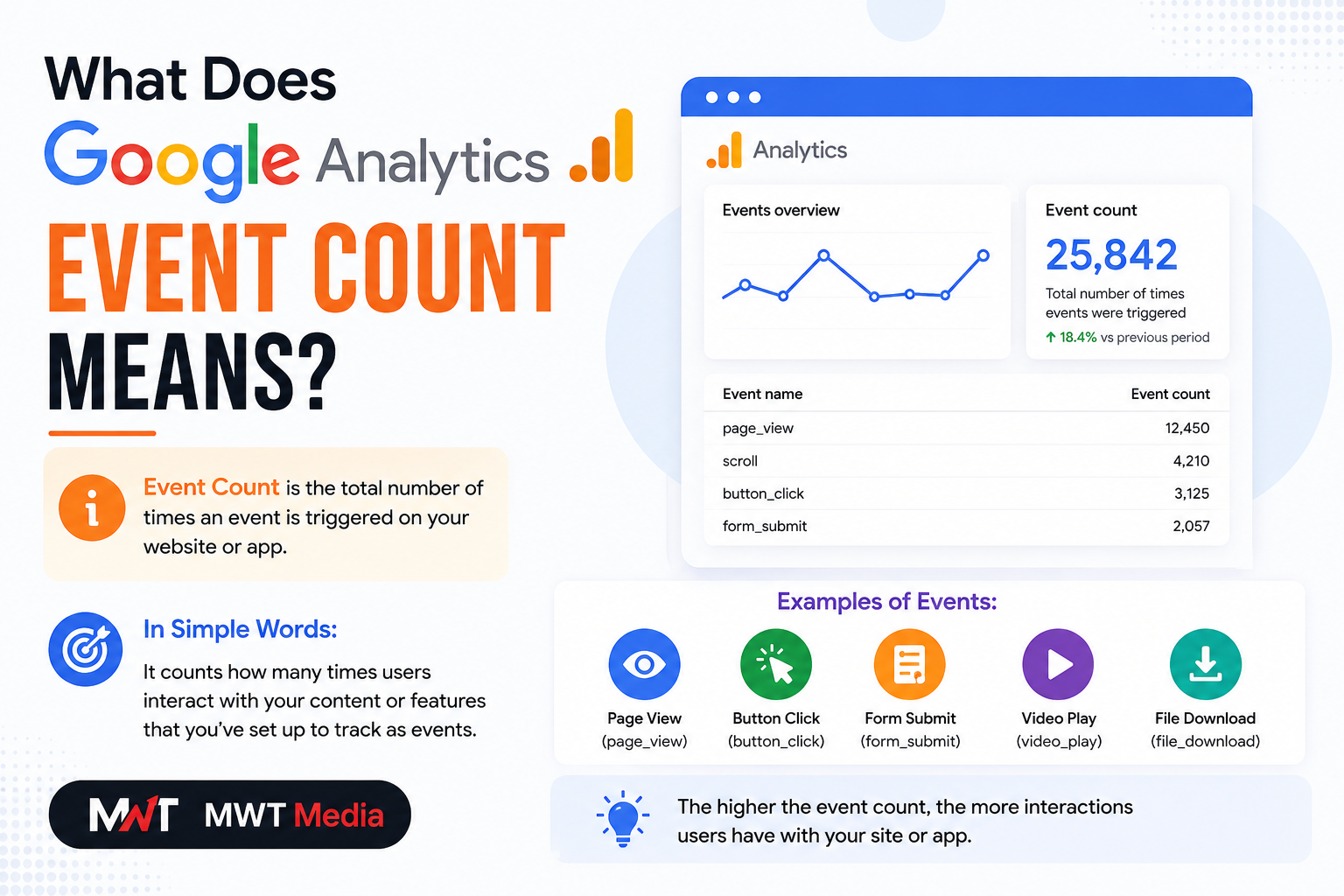
If you’ve ever opened your Google Analytics 4 (GA4) dashboard and found yourself staring at a column labeled “Event Count” — wondering what it actually means and why it matters — you’re in the right place.
Event count is one of the most powerful and frequently misunderstood metrics in Google Analytics. In this complete guide, we’ll break down exactly what event count means, how it works, the different types of events GA4 tracks, and how to use this data to make smarter decisions for your website or app.
What Does Event Count in Google Analytics Mean?
Event count in Google Analytics 4 (GA4) refers to the total number of times a specific user interaction was recorded on your website or app within a selected time period.
In simple terms: every time a user performs a tracked action — clicking a button, watching a video, downloading a file, submitting a form — GA4 logs it as one event. The event count is just the running total of how many times that action happened.
Simple example: If 50 users each click your “Buy Now” button once, your event count for that button click is 50. But if 10 users each click it 5 times, the event count is still 50 — because event count measures total occurrences, not unique users.
This distinction is important and something we’ll come back to shortly.
Why Event Count Matters
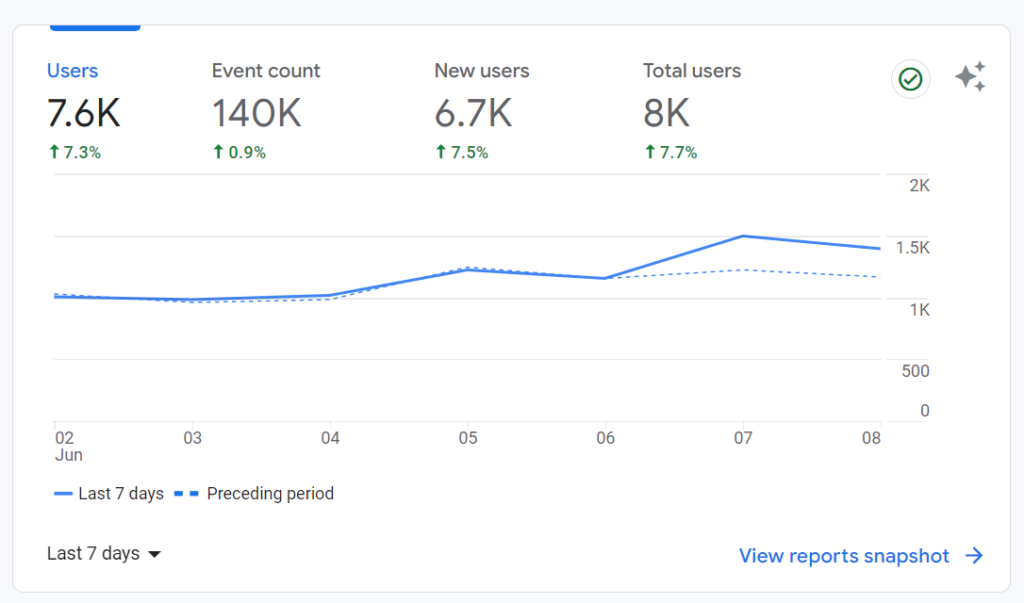
Before GA4, Google Analytics was built around sessions and pageviews. You could see how many people visited a page — but not much about what they actually did on it.
GA4 changed everything by switching to an event-based model. In GA4, almost every interaction a user has with your website or app is tracked as an event. A page loading is an event. A scroll is an event. A video play is an event. This gives you a far more detailed and accurate picture of how users actually engage with your content.
Event count is the core metric that makes all of this possible. Here’s why it matters:
- Understand what content drives engagement — See which pages, buttons, or features users interact with most
- Identify drop-off points — Spot where users stop engaging in a funnel or user journey
- Measure campaign performance — Track whether your marketing campaigns are driving meaningful actions, not just traffic
- Optimize UX and design — Use event data to improve layouts, CTAs, and navigation based on real behavior
- Track conversions accurately — Connect specific events to revenue-generating actions
Event Count vs. Other Metrics: Key Differences
One of the most common sources of confusion in GA4 is understanding how event count differs from related metrics.
Event Count vs. Total Users
| Metric | What It Measures |
|---|---|
| Event Count | Total number of times the event was triggered |
| Total Users | Number of unique users who triggered the event |
Example: If your event count for brochure_download is 100 but Total Users is 20, it means 20 users downloaded the brochure — but on average, each user downloaded it 5 times.
A high event count relative to total users usually signals strong engagement. But it could also reveal friction — for example, users clicking a button repeatedly because it doesn’t appear to work.
Event Count vs. Unique Event Count
- Event Count — Total number of times an event fired across all sessions
- Unique Event Count — Number of sessions in which the event occurred at least once
Formula: Event Count = Total Number of Event Triggers
If 1,000 users each download a brochure twice, the event count is 2,000, but the unique event count is 1,000.
Event Count vs. Pageviews
Pageviews only tell you that a page was loaded. Event count tells you what happened after the page loaded — what users clicked, watched, scrolled through, or downloaded. Together, these two metrics give you a complete picture of user behavior.
The 4 Types of Events in Google Analytics 4
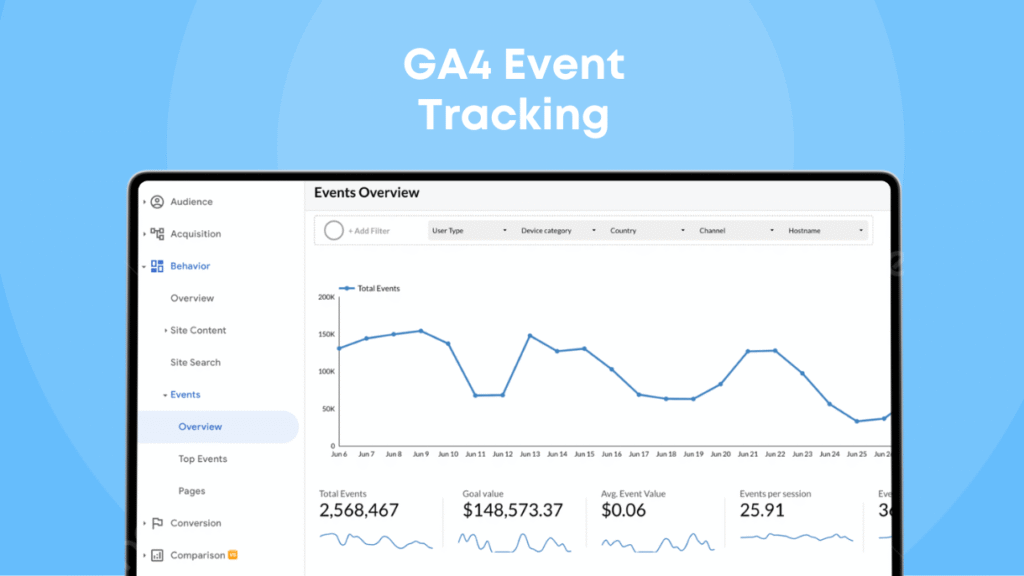
GA4 tracks four distinct categories of events. Understanding each one helps you know what’s being measured automatically and what you may need to set up yourself.
1. Automatically Collected Events
These are events that GA4 tracks by default as soon as you install the tracking code — no additional setup required. Examples include:
session_start— When a new session beginsfirst_visit— When a user visits your site for the first timepage_view— When a page loads
2. Enhanced Measurement Events
These are also collected automatically, but you need to enable them in your GA4 data stream settings. They track common web interactions such as:
scroll— When a user scrolls 90% down a pageclick— When a user clicks an outbound linkfile_download— When a user downloads a filevideo_start,video_progress,video_complete— Video engagement milestonesview_search_results— When a user performs a site search
3. Recommended Events
Google provides a predefined list of recommended events with standardized names and parameters for common business scenarios. These aren’t tracked automatically — you need to implement them — but using Google’s naming conventions allows GA4 to recognize and report on them more intelligently. Examples include:
add_to_cart— For e-commerce sitespurchase— When a transaction is completedgenerate_lead— For lead generation websitessign_up— When a user creates an account
4. Custom Events
These are events you define yourself to track interactions that are unique to your business goals. Custom events let you go beyond the defaults and measure exactly what matters to you — such as coupon code usage, wishlist additions, specific video engagement milestones, or chatbot interactions.
How to Find Event Count in Google Analytics 4
Finding your event count data in GA4 is straightforward. Here’s where to look:
Via the Events Report (Quickest Method)
- Sign in to your GA4 property at analytics.google.com
- In the left-hand navigation, click Reports
- Under the Life cycle collection, expand Engagement
- Click Events
This report shows a table of all your event names alongside their event counts and total users — giving you a quick overview of which events are firing most frequently.
Via the Explorations Section (Advanced Analysis)
For deeper analysis, head to the Explorations section of GA4. Here you can build custom reports by combining and filtering dimensions and metrics. For example, you can create a report showing the most common events broken down by device type, traffic source, or user geography.
Via Real-Time Reports (For Testing)
If you’ve just set up a new event and want to confirm it’s firing correctly, use the Real-time report or DebugView (found under the Admin panel) to watch events populate in real time as you interact with your website.
How to Set Up Event Tracking in GA4
Setting up event tracking in GA4 is more flexible than it was in Universal Analytics. You have two main options:
Option 1: Enable Enhanced Measurement (No Code Required)
- Go to Admin in your GA4 property
- Under Data Streams, select your web stream
- Toggle on Enhanced Measurement
- Choose which interactions you want to track automatically (scrolls, clicks, downloads, etc.)
Option 2: Use Google Tag Manager (For Custom Events)
- Install Google Tag Manager (GTM) on your site
- Create a new GA4 Event Tag in GTM
- Define the event name and any parameters you want to capture
- Set a trigger — for example, a button click or form submission
- Publish the container and test in Preview mode
- Verify the event appears in GA4’s Real-time report
Real-World Examples of Event Count in Action
Here are some practical scenarios where event count delivers actionable insights:
E-commerce Store: Tracking the add_to_cart event count alongside the purchase event count reveals your cart abandonment rate. If 5,000 users add items to their cart but only 800 complete a purchase, you know there’s a conversion problem worth investigating.
Blog or Content Site: Tracking scroll depth events shows how far users actually read your articles. If your event count for “90% scroll” is very low compared to page views, your content may not be holding readers’ attention.
SaaS or App: Tracking button clicks and feature interactions tells you which parts of your product are being used and which are being ignored — invaluable data for product development decisions.
Lead Generation Site: Comparing the event count for form_view vs. form_submit tells you exactly how many users started filling out a form but didn’t complete it — a classic sign of friction in your conversion funnel.
Common Mistakes to Avoid with Event Count
Tracking Everything Without a Strategy
GA4 can technically track an enormous number of events, but more data doesn’t always mean better insights. Focus on tracking the events that are directly connected to your business objectives.
Confusing Event Count with Total Users
A high event count doesn’t mean many users took an action — it means the action was taken many times. Always look at both metrics together for a full picture.
Not Marking Key Events as Conversions
In GA4, you can mark any event as a conversion (formerly called a goal). If you don’t do this for your most important events — form submissions, purchases, sign-ups — you’ll miss out on conversion tracking in your reports.
Ignoring Automatically Collected Data
Many website owners spend time setting up custom events without first reviewing what GA4 already tracks for free. Check your automatically collected and enhanced measurement events before duplicating effort.
Quick Summary: What Does Event Count in Google Analytics Mean?
To put it simply:
Event count in Google Analytics is the total number of times a specific user interaction was recorded on your website or app. Every click, scroll, video play, form submission, or download that you’ve set up as an event adds to this count each time it occurs.
It’s the foundation of behavioral analytics in GA4 — and understanding it is the first step toward using data to genuinely improve your website’s performance, user experience, and conversion rates.
Final Thoughts
Once you understand what event count means in Google Analytics, you unlock a completely different level of insight into how your users behave. Rather than just knowing how many people visited your site, you start understanding what they did, where they stopped, and what made them convert.
Start by reviewing the automatically collected events already firing in your GA4 property. Then identify the two or three key user actions most connected to your business goals and make sure those are being tracked. Over time, your event count data will become one of the most valuable inputs for every decision you make about your website.

Daniel
Daniel Addam is an SEO & Content Writer at MWT Media, specialising in crafting data-driven content that ranks. With a deep understanding of search engine optimisation, keyword strategy, and audience engagement, Daniel creates compelling articles, blog posts, and web copy that not only attract organic traffic but convert readers into customers. At MWT Media, Daniel plays a key role in developing content strategies that align with client goals — from on-page SEO optimisation to high-quality guest posting campaigns. His work is rooted in research, precision, and a commitment to delivering measurable results. When it comes to digital content, Daniel believes that great writing and smart SEO are not mutually exclusive — and his work at MWT Media reflects exactly that.