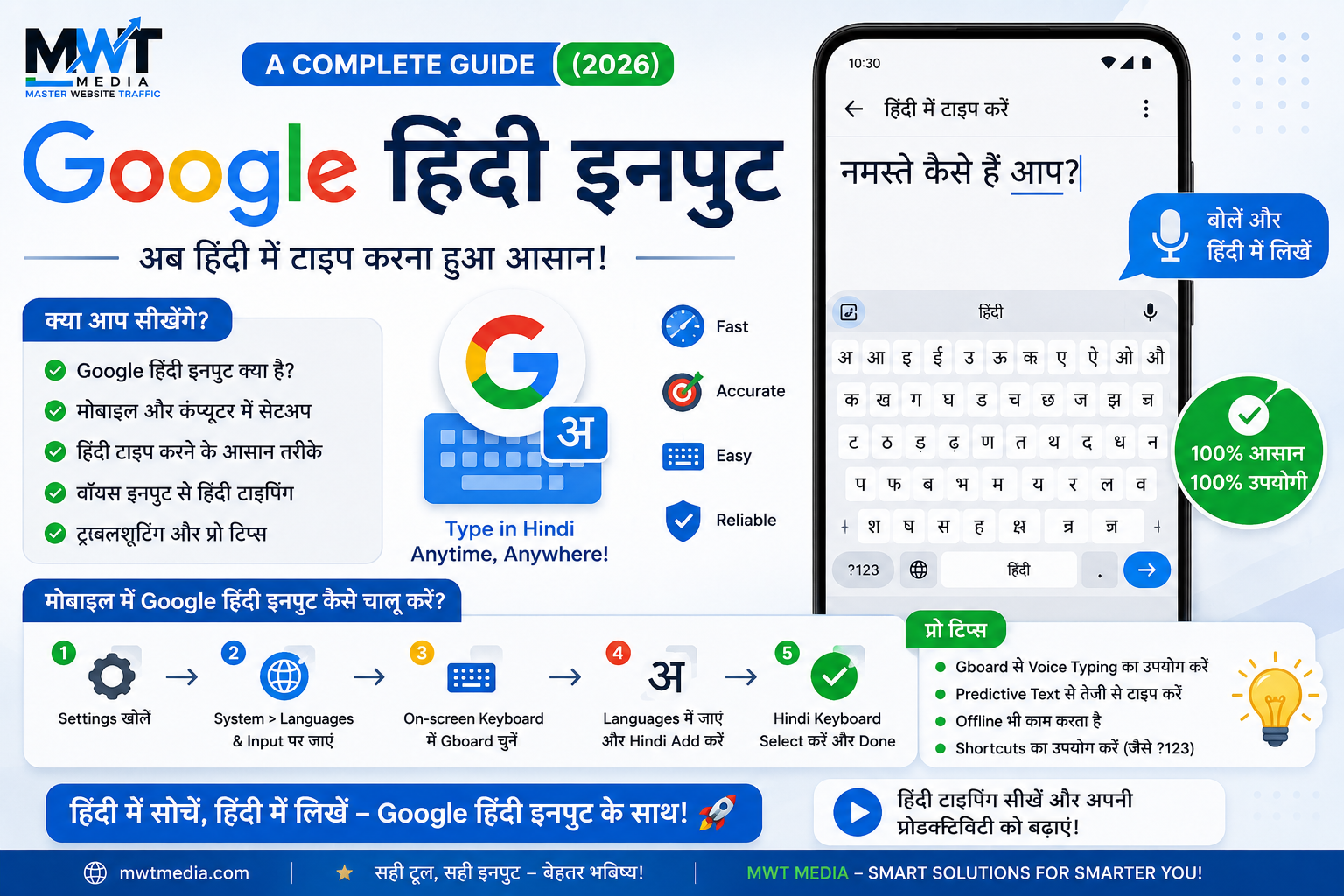
If you want to type in Hindi on your phone — for messaging, social media, emails, or search — Google has built one of the most reliable ways to do it. “Google Hindi Input” refers to Google’s Hindi keyboard technology, which today lives inside Gboard, Google’s main keyboard app for Android and iOS. This guide covers what it is, how it works, and how to set it up on your device.
What Is Google Hindi Input?
Google Hindi Input was originally released as a standalone keyboard app, built by Google’s Internationalization team as one of the first Indic-language input methods on Android. It let users type in Hindi either by tapping a full Devanagari script keyboard or by typing English letters that were automatically transliterated into Hindi — so typing “namaste” would produce “नमस्ते.”
That standalone app’s functionality has since been folded into Gboard, which now handles Hindi typing (along with dozens of other Indian languages) as one of its built-in language options. So if you’re looking to “download Google Hindi Input” today, Gboard is the app you actually want — it includes everything the original did, plus glide typing, voice dictation, and regular updates.
How Hindi Typing Works in Gboard
Gboard supports a few different ways to type in Hindi, so you can pick whichever feels most natural:
- Devanagari keyboard — a full native Hindi script keyboard, letting you type Hindi characters directly, with long-press options to access additional character forms.
- Transliteration (Hinglish) mode — type Hindi words using English letters, and Gboard automatically converts them into Devanagari script as you type. This is the most popular method for people who think in Hindi but are more familiar with a Latin/QWERTY keyboard layout.
- Handwriting input — write Hindi characters directly on the screen with your finger or a stylus, and Gboard converts your handwriting into typed text.
- Voice typing — dictate in Hindi and have it converted to text, useful for longer messages or when typing isn’t convenient.
Gboard also offers real-time suggestions in both English and Hindi when Hinglish mode is active, along with autocorrect and next-word prediction trained specifically for Hindi.
How to Set Up Hindi Typing on Android
- Install Gboard from the Google Play Store if it isn’t already your default keyboard.
- Open Settings on your phone and go to System > Languages & input > On-screen keyboard > Gboard.
- Tap Languages, then Add keyboard.
- Search for and select Hindi.
- Choose your preferred layout — Devanagari, Transliteration, or Handwriting — then tap Done.
- Open any app with a text field, tap the globe icon (or long-press the spacebar) to switch between your installed languages, and select Hindi.
Once set up, switching between English and Hindi is instant — just tap the globe icon on the keyboard whenever you want to change languages.
How to Set Up Hindi Typing on iOS
- Install Gboard from the App Store.
- Open the Gboard app and go to Languages.
- Tap Add a New Language, search for Hindi, and select your preferred layout.
- Go to your iPhone’s Settings > General > Keyboard > Keyboards, and make sure Gboard is enabled and set as an allowed keyboard.
- In any app, tap the globe icon on the keyboard to switch to Hindi.
Tips for Typing Hindi More Accurately
- Stick with Transliteration mode if you’re new to Devanagari. It’s by far the fastest way to get comfortable typing in Hindi if you’re used to an English keyboard.
- Use the word suggestion bar. Gboard’s Hindi suggestions improve the more you use them, learning your common words and phrases over time.
- Try Handwriting mode for less common words or names. It’s often more accurate than transliteration for words that don’t have an obvious phonetic spelling.
- Enable multiple Indian languages if needed. Gboard supports Hindi alongside languages like Bengali, Gujarati, Marathi, Tamil, Telugu, Punjabi, and many more — useful if you regularly switch between languages.
Alternatives to Gboard for Hindi Typing
While Gboard is the official Google option and generally the most reliable choice, a few third-party Hindi keyboard apps are also popular on Android, often with their own take on features like sticker packs, custom themes, or handwriting recognition. These can be worth exploring if you want a different visual style or specific extra features, though Gboard remains the most consistently updated and widely compatible option across devices.
Final Thoughts
Whether you’re texting family, browsing in Hindi, or writing content for work, Google’s Hindi input tools — now built into Gboard — make typing in Hindi on a phone genuinely easy, whether you type in native Devanagari script or simply spell things out phonetically in English and let the keyboard do the conversion. A few minutes of setup is all it takes to have full Hindi typing available anywhere on your device.