
Margins may seem like a small formatting detail, but they play a huge role in how professional and readable your document looks. Whether you’re preparing a report, an assignment, or a business document, adjusting margins properly can improve layout, printing accuracy, and overall presentation.
If you’ve ever struggled with page formatting, this guide will show you how to change margins in Google Docs quickly and easily. The process only takes a few seconds once you know where to look.
Why Margins Matter in Google Docs
Margins are the blank spaces between the content of your document and the edges of the page. These spaces help keep text organized and prevent it from looking cramped.
Changing margins can be useful when you want to:
- Fit more text on a page
- Follow specific formatting requirements for school or work
- Improve readability and document design
- Prepare a document for printing
Understanding how to change margins in Google Docs gives you more control over your document layout.
Default Margin Size in Google Docs
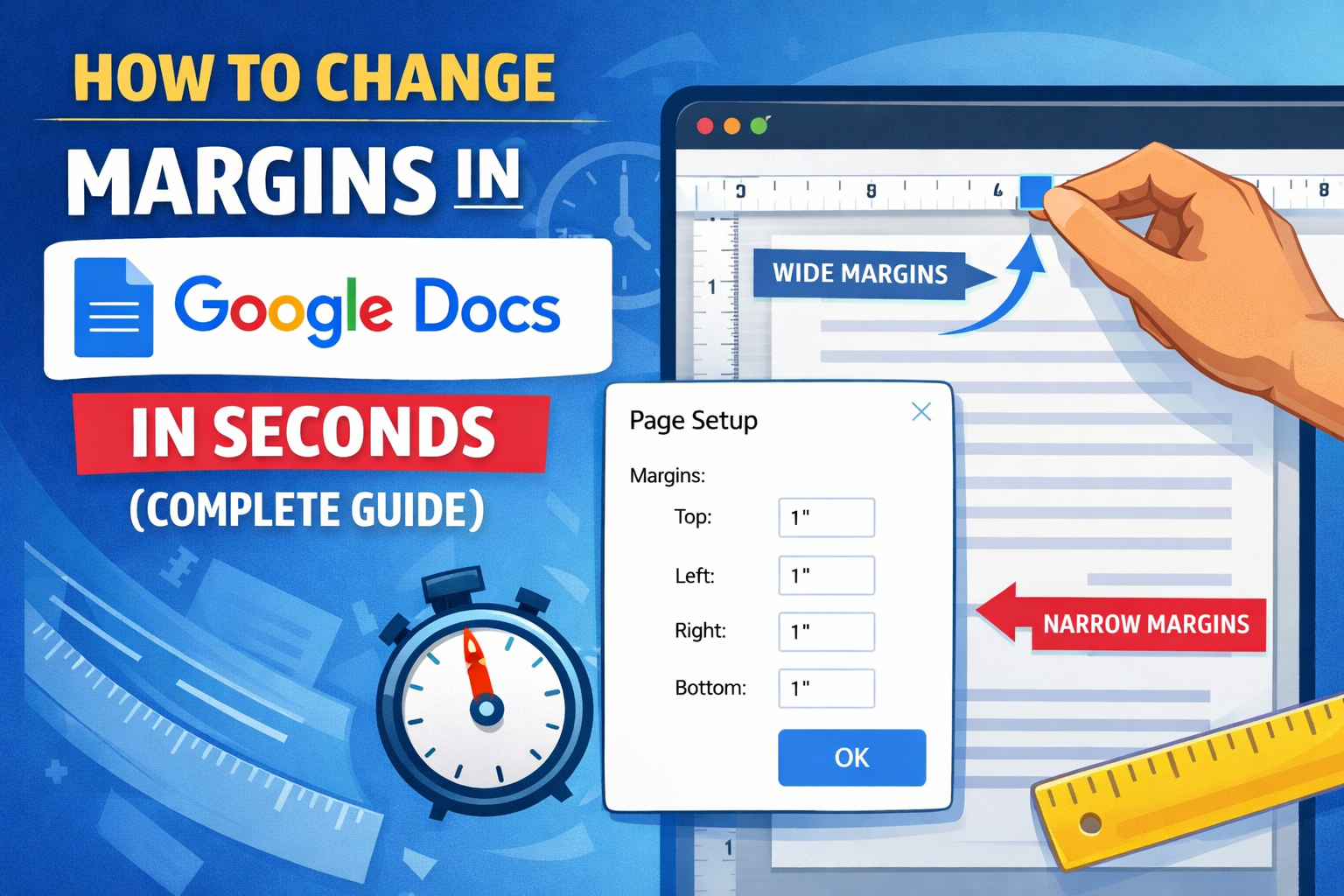
By default, Google Docs uses 1-inch margins on all sides of the page:
- Top: 1 inch
- Bottom: 1 inch
- Left: 1 inch
- Right: 1 inch
These margins work well for most documents, but sometimes you may need to adjust them depending on formatting guidelines.
Method 1: How to Change Margins in Google Docs Using Page Setup
The easiest and most precise way to change margins is through the Page Setup menu.
Step-by-Step Instructions
- Open your document in Google Docs.
- Click File in the top menu.
- Select Page Setup from the dropdown menu.
- A new window will appear showing margin settings.
- Enter your desired margin sizes for:
- Top
- Bottom
- Left
- Right
- Click OK to apply the changes.
This method is the most reliable when you want exact measurements.
Method 2: How to Change Margins in Google Docs Using the Ruler
Another quick way to adjust margins is by using the ruler at the top of the document.
Steps
- Open your document in Google Docs.
- Make sure the ruler is visible at the top of the page.
- Locate the gray and white areas on the ruler.
- Drag the gray margin markers left or right to adjust margins.
This method is faster but less precise than using Page Setup.
How to Set Custom Margins for Specific Documents
Sometimes a document requires specific formatting standards. For example:
- Academic papers
- Business reports
- Printed documents
In these cases, you can manually enter exact values in the Page Setup window. This ensures your formatting remains consistent across every page.
Learning how to change margins in Google Docs using custom measurements helps maintain professional formatting.
How to Set Default Margins in Google Docs
If you frequently use the same margin settings, you can save them as your default.
Steps
- Open File → Page Setup.
- Enter your preferred margin sizes.
- Click Set as default.
- Press OK.
From now on, every new document will use those margins automatically.
Common Margin Issues and How to Fix Them
Sometimes margin settings don’t behave as expected. Here are a few quick fixes.
Ruler Not Visible
If you can’t see the ruler:
- Click View in the top menu
- Select Show ruler
Content Going Outside the Page
This usually happens if margins are too small. Increase the margin size using Page Setup.
Printing Problems
If text is too close to the edges, printers may cut it off. Use at least 0.5 to 1 inch margins for safe printing.
Best Margin Settings for Different Documents
Here are some common margin recommendations:
| Document Type | Recommended Margins |
|---|---|
| School Essays | 1 inch |
| Business Reports | 1 inch |
| Books or Booklets | 0.75 – 1 inch |
| Presentations | 0.5 – 1 inch |
Adjust margins depending on the purpose of your document.
Final Thoughts
Knowing how to change margins in Google Docs is a simple but essential formatting skill. Whether you’re writing an academic paper, preparing a professional report, or formatting a document for printing, adjusting margins can significantly improve readability and layout.
With the Page Setup option for precision and the ruler method for quick adjustments, you can customize your document margins in just seconds.
Once you understand how to change margins in Google Docs, managing page formatting becomes much easier and your documents will look more polished and professional.